The majority of players sometimes overlook a surprising reality: Windows already includes a built-in FPS counter, often neglected in favor of external solutions. However, the jungle of specialized software does not always guarantee precision or compatibility. Each game engine has its quirks, and each tool has its limitations.
The direct display of frames per second has become an essential indicator: it reveals the smoothness of a game, as well as the weaknesses of a setup. To choose the right software, it’s not enough to look at the technical specifications: ease of access matters just as much as the impact on the overall performance of the PC.
Why monitoring your FPS changes everything for the gaming experience
The number of frames per second, or FPS, measures the smoothness of a video game with relentless precision. On a powerful PC, with a strong graphics card, a fast processor, and a high refresh rate monitor, every displayed frame counts. It’s hard to remain indifferent: 60 FPS promises responsive control, while 30 FPS can lead to noticeable slowdowns and even some frustration. Ask the competitors: in esports, even the slightest drop in pace can turn the tide of a match.
Monitoring your FPS opens your eyes to the weak points of your machine. Graphics card, processor, monitor: at the slightest lag, the experience deteriorates. Some games offer a built-in counter, but it often lacks flexibility or detail. This is where more advanced tools come into play. Take the CORSAIR XENEON 27QHD240 OLED, for example: its 240 Hz imposes a natural limit, impossible to exceed even if the graphics card allows it.
Optimization enthusiasts don’t stop there. Overclocking is gaining ground, but it requires rigorous monitoring of the PC’s stability. Thanks to tools like RTSS, it becomes possible to monitor FPS, CPU load, GPU load, and the temperature of each component in real-time. The display can be customized according to needs, allowing for on-the-fly adjustments between performance and graphical quality.
Here’s what an effective FPS counter can bring in practice:
- It highlights the true balance between hardware power and the graphical demands of the game.
- In real-time, it guides adjustments to stabilize the display, prevent drops in smoothness, and manage RAM and VRAM effectively.
Modern video gaming is no longer limited to what appears on the screen: statistics and behind-the-scenes settings play a decisive role. Savvy players scrutinize every piece of data, test different configurations, and refine their choices, ensuring that with each session, the machine performs at its best.
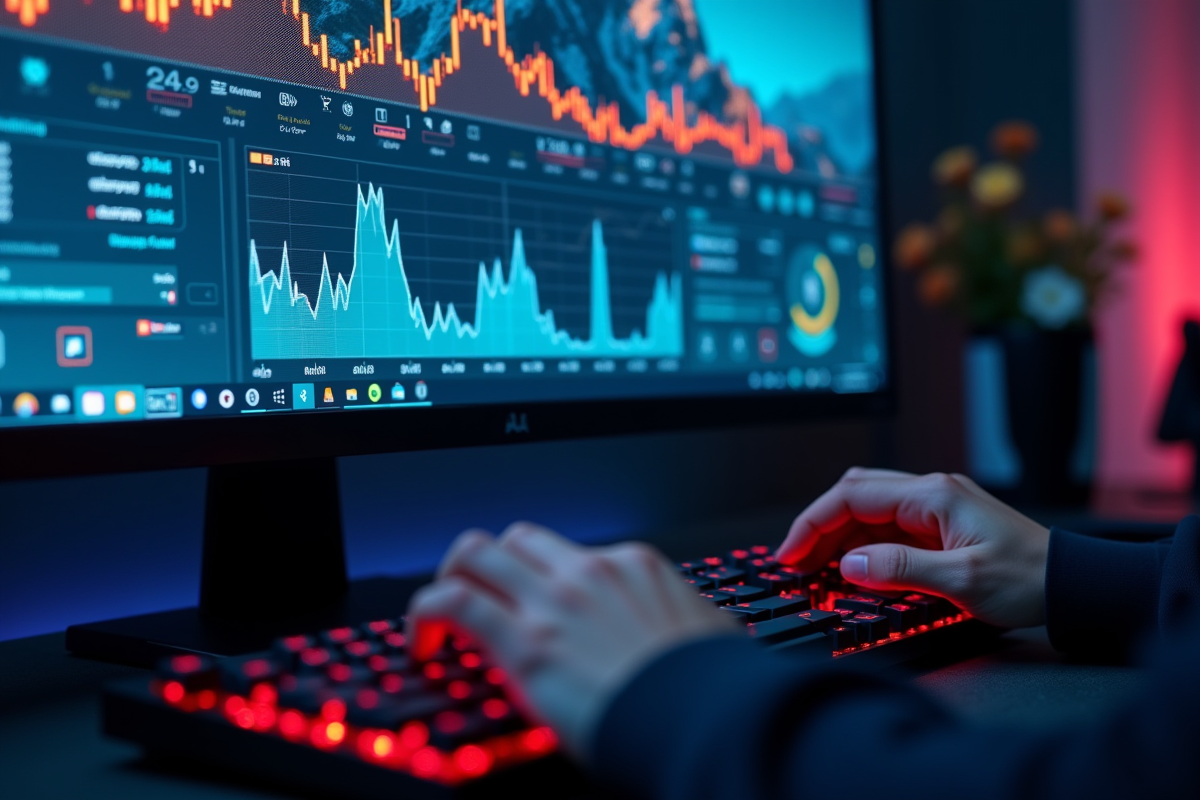
Comparison of essential tools for displaying and analyzing FPS in real-time
Displaying FPS in real-time has become a key step in judging fluidity and stability in video gaming. Several solutions stand out, each catering to specific needs.
Among the industry references, MSI Afterburner paired with RivaTuner is a must-have. The interface allows you to quickly monitor FPS, temperature, CPU load, and GPU load. The overlay adapts: minimalist or detailed, it appears in a corner without interfering with gameplay. This duo is particularly appreciated for overclocking, thanks to continuous monitoring of system stability.
Players on Steam benefit from an integrated FPS counter, easily accessible from the platform’s settings. The display remains discreet but gets the job done without requiring additional installation.
On the native features side, the Game Bar of Windows 10 and 11 also offers real-time monitoring: pressing Win + G opens a widget that displays not only FPS but also CPU load, GPU load, and the amount of RAM used.
Here are the concrete advantages of these solutions:
- Overlay display of FPS without hindering game readability.
- Real-time tracking of hardware behavior, even during the most intense phases.
- Quick access to useful data to adjust graphical settings according to the situation.
Let’s take the analysis further. Benchmarking tools like 3DMark and Cinebench test CPU and GPU, revealing the limits of the configuration. For those who want to examine each component, CPU-Z and GPU-Z detail their operation, while MemTest86 checks the stability of the RAM.
The final choice depends on each player’s expectations. Some prioritize in-depth analysis to adjust every parameter, while others are satisfied with a simple counter to ensure smoothness remains intact. FPS have never been scrutinized as closely: everyone has their method to transform each game into a tailored experience.